How Much RAM Does Your Laptop Need to Run AI Locally?
A 3.4GB download called qwen3.5:4b-q4_K_M (an LLM, or large language model) answers a question on an ordinary 16GB laptop tonight, no cloud account required. Pull it with Ollama, ask it one question at a 4K context, and you're running a real AI model locally, on hardware you already own. It reads text and images, and it's inference, not training: nobody is teaching the model anything new here, it's just answering.
A vague 'AI PC' sticker on a laptop box isn't a spec. RAM, the memory your GPU can use, storage, and real software support are. 16GB of memory is a genuine entry point for small AI models, not a bare minimum to write off and not a promise of everything a spec sheet advertises. More memory buys context and room to multitask. 16GB gets you started.
What Actually Uses Your Laptop's RAM When You Run AI
A model's download size and its RAM footprint while running are two different numbers, and mixing them up is the single most common mistake in laptop AI shopping. The 3.4GB you download for qwen3.5:4b-q4_K_M is the file on disk. Loading it takes real memory. So does the context window, the running conversation the model holds in mind while it answers, called the KV cache. So does the engine itself, plus whatever else your operating system and other apps are already using.
Ollama loads a 4,096-token context by default, and you can raise it. Running several requests at once multiplies how much context memory you need, roughly by the number of parallel requests. A model's spec sheet might advertise a 128K or 256K token context window; treat that as the model's ceiling, not a promise that your 16GB laptop can afford to use all of it at once.
RAM, VRAM and Unified Memory Aren't the Same Pool
Apple Silicon chips use unified memory: the CPU and GPU draw from the same 16, 24 or 32GB pool, so there's no separate graphics memory to run short of. A typical Windows or Linux laptop with a dedicated NVIDIA GPU works differently. System RAM and the GPU's own VRAM are two separate pools, and 16GB of system RAM plus an 8GB GPU is not one 24GB pool a model can use freely.
When a model doesn't fit entirely on the GPU, part of it runs on the CPU instead, a partial offload that can make a technically loadable model feel noticeably slower. Run and it shows you exactly that CPU/GPU split for whatever's currently loaded.
Capacity is only half the story. How fast that memory moves matters just as much: Apple states 153GB/s of memory bandwidth on the MacBook Air M5, and bandwidth, not just size, is a real part of why unified memory feels responsive rather than just technically sufficient.
Quantization: How a 9B AI Model Shrinks to Fit Your RAM
Quantization is the mechanism behind that 3.4GB download: storing a model's weights at lower numeric precision shrinks the file, and Qwen3.5's own 9B model shows the range clearly. The same 9B model downloads at 6.6GB as Q4_K_M, 11GB as Q8_0, and 19GB at full BF16 precision. Same model, same parameter count, three very different download sizes, and once again, download size rather than the RAM needed while it runs.
Lower precision generally costs some quality, and how much depends on the task, not a fixed percentage. One real-world quirk worth knowing before you pick Qwen as your first model: some users report its 'thinking' step adding noticeable delay before an answer appears, compared to models that answer more directly. Worth trying both styles on your own tasks rather than assuming one is simply better.
Already Own a 16GB MacBook? Try This Before Buying Anything
If you already own a 16GB MacBook, start with a 2-4B model at Q4 precision and a 4K context before you consider buying anything else. A 9B Q4 model, or something like Gemma 4 12B QAT, might load too. Whether it does depends on how many other apps are open, how much context you're using, and how warm the machine's already running, so treat it as worth trying rather than guaranteed.
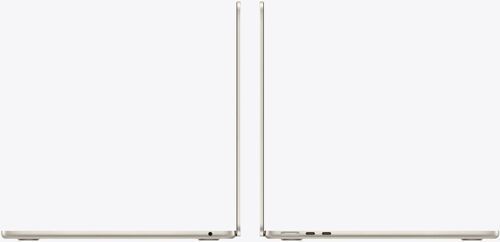
Looking to buy new specifically for this? The MacBook Air 13-inch with M5 chip ships with 16GB of unified memory as standard, configurable up to 32GB. And before the bigger screen tempts you as an upgrade: the 15-inch M5 Air starts at the identical 16, 24 and 32GB memory options and the same 153GB/s bandwidth as the 13-inch. Choose your screen size for comfort, not because you think it buys more AI headroom. It doesn't.

Already Own a 16GB Windows or Linux Laptop? Start Here
A 16GB Windows or Linux laptop without a dedicated GPU can still run a small model. Ollama runs natively on Windows, so pull a 2-4B Q4 model and try it on the CPU or integrated graphics before spending anything. Expect more variation in how it feels than on Apple Silicon: no fixed tokens-per-second number applies across every machine, since nobody has measured every configuration.
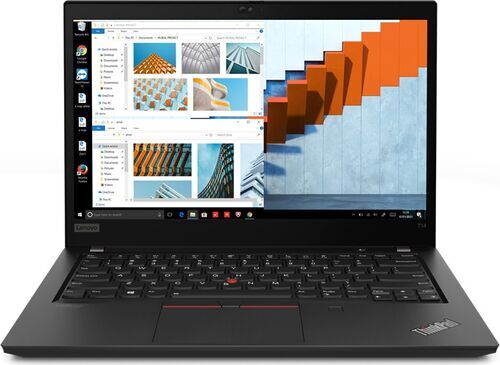
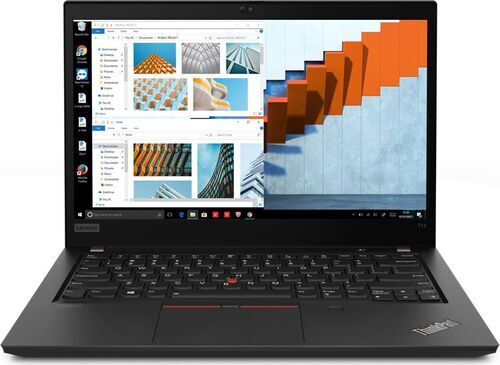
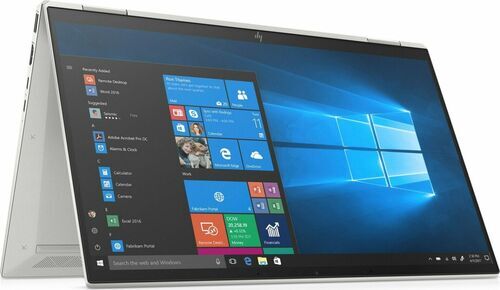
The Lenovo ThinkPad T14 G2 and the HP EliteBook x360 1040 G7 both carry 16GB of RAM with integrated graphics, exactly this tier. One thing worth checking first, especially on an older refurbished machine like either of these: LM Studio requires AVX2 support on Windows x64, an instruction set older CPUs don't all have. Confirm your specific processor supports it before assuming any laptop in this range will run the tool you've picked.
The Laptop GPU Naming Trap: Why 'RTX 5070 Ti' Isn't One Number
NVIDIA's laptop GPUs share names with desktop cards, and that name tells you less than you'd think. The RTX 5060 Laptop GPU carries 8GB of GDDR7 memory and a published power range of 45 to 100 watts. The RTX 5070 Ti Laptop GPU carries 12GB of GDDR7 and 60 to 115 watts. A desktop RTX 5070 Ti result online is not a laptop RTX 5070 Ti result, whatever the name suggests.
There's a second trap hiding in that same name. Two laptops can both carry an 'RTX 5070 Ti Laptop GPU' and still perform differently under sustained load: a thin, light chassis and a thicker, heavier one manage heat differently, and the same GPU name doesn't guarantee the same real-world speed once the fans have been running for a while. Always check the exact VRAM figure and the laptop's own power configuration, never just the GPU family name.
Buying New on Mac? The Comfortable Unified-Memory Tier
If you're buying specifically to host local AI regularly, 24 to 32GB of unified memory is the more comfortable Apple tier: it leaves real room for a larger model, a longer context, or simply keeping other apps open while you work. Go for 32GB if you expect to use this often and the budget allows it.
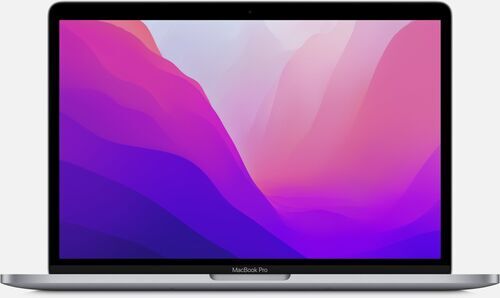
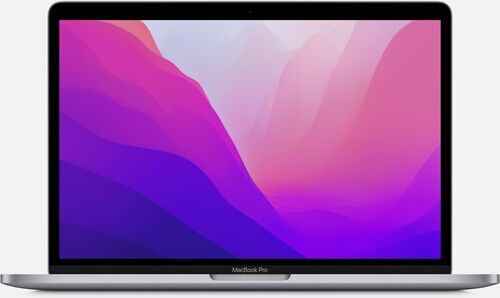
The MacBook Pro 13-inch with M2 chip is a real refurbished example already sitting above the 16GB entry tier: its 8-core CPU and 10-core GPU pair with up to 24GB of unified memory. It's an older chip generation than the M5 Air, so its own 24GB ceiling is what to expect here, not the M5 Air's separate 24/32GB configuration options.
Buying New on Windows or Linux? Look for a Dedicated GPU
For a new Windows or Linux purchase built around local AI, look for 32GB of system RAM alongside a dedicated NVIDIA laptop GPU with at least 8GB of its own VRAM, and 12GB if a slightly heavier or pricier laptop is an acceptable trade. 8GB is a plausible target for 4-7B models at Q4 precision with a moderate context, but don't assume it's automatic headroom: even the 6.6GB download for a 9B Q4 model can need more than a bare 8GB to run comfortably, and 12GB simply opens easier testing at that size.
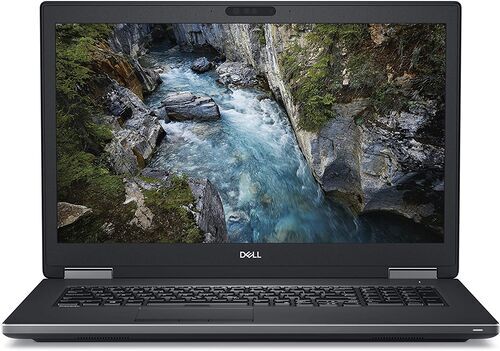
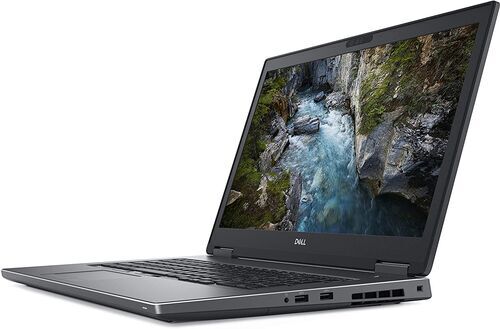
The Dell Precision 7730 is a real refurbished example of the underlying idea, if not the exact new chips above: 32GB of system memory sits alongside a dedicated NVIDIA Quadro P3200 with its own 6GB of VRAM, a different GPU generation and class from NVIDIA's current RTX 5060 and 5070 Ti Laptop GPUs, but the same separate-pools principle.
A Responsible Alternative: AMD's High-Memory Laptop Chips
AMD's Ryzen AI Max+ 395 processor supports up to 128GB of LPDDR5x system memory, depending on how the finished laptop is configured. That's a different memory architecture worth knowing about, and it comes with a real catch: Ollama's Linux ROCm support list names this chip, while its Windows ROCm list currently doesn't.
That's a reason to verify the exact installed memory, operating system, GPU backend, driver and Ollama behaviour on a specific laptop before recommending it, not a reason to dismiss the chip outright. Treat a high-memory AMD laptop as an interesting alternative architecture worth researching carefully, not the default first purchase for someone new to running AI locally.
The Software Layer: Ollama and LM Studio in Plain Terms
Ollama is the simplest way to get a model talking on your own machine: pull a model, run it, and you have a local server answering requests, with no cloud account required for a downloaded model. It's the tool behind every example here.
LM Studio offers a graphical alternative with its own model browser and chat window. It publishes its own minimums: at least 16GB of RAM on Mac or Windows, AVX2 support required on Windows x64, and 4GB of dedicated VRAM recommended on Windows. Setting either one up properly is a subject on its own.
One caution before you trust any single speed number you read online: the official llama-bench tool separates prompt-processing speed from generation speed and reports variation across repeated trials rather than one figure. A forum post quoting one tokens-per-second number rarely says which of the two it measured, or how many times it was run.
A Checklist for Buying or Upgrading an AI-Ready Laptop
Before you buy or upgrade specifically for local AI, check the specifics rather than the marketing.
Exact GPU model and VRAM. Not the GPU family name alone; the exact laptop variant and its own memory figure, since the same name can hide different amounts of VRAM.
Soldered or upgradeable RAM. Some laptops let you add memory later; many modern thin-and-light ones don't. Know which one you're buying.
Free SSD storage. Model downloads range from under a gigabyte to well over ten, and a growing collection adds up fast alongside your other files.
Thermal behaviour under sustained load. A model answering one question and a laptop fielding several requests in a row are different tests; fan noise and throttling after repeated prompts tell you more than a single quick demo does.
OS and driver support. Confirm your exact GPU backend and operating system combination has Ollama or LM Studio support before you assume it.
The NPU TOPS number on the box isn't a throughput guarantee. It's a marketing figure, not a tested result from the engine you'll run. A vague 'AI PC' label is not a substitute for any of the checks above.
Five Refurbished Laptops That Already Meet These Tiers
Frequently Asked Questions About Running AI on a Laptop
Do I need a dedicated GPU to run AI locally?
No. A small model runs on CPU or integrated graphics on many 16GB laptops, just with more variation in speed than a laptop with a dedicated GPU. Start with a 2-4B model before assuming you need dedicated graphics at all.
Will 8GB of RAM work?
Not comfortably for the models discussed here. 16GB is the realistic starting point once you account for the model, its context window, the engine and your operating system all sharing the same memory.
Is running a model locally the same as training one?
No. Everything above is inference: asking an already-trained model questions. Training builds a model from scratch and needs far more hardware than any laptop here.
Does more RAM guarantee faster answers?
No. More memory buys headroom for bigger models, longer context and more open apps, but real speed depends on memory bandwidth, the GPU backend and the specific model, not memory size alone.
Is my data private when a model runs locally?
Yes, in the sense that your prompts stay on your machine rather than going to a cloud provider. Ollama binds to your own laptop by default and doesn't send requests anywhere else unless you deliberately configure cloud access.
Try It Tonight, Then Shop With Confidence
Already own a 16GB laptop? Install Ollama tonight and run one small model before you spend a cent on anything new. Buying specifically for this? Take the checklist above, and the five refurbished laptops just covered, as your starting comparison rather than a marketing spec sheet.
Every laptop on refurbed is tested and graded before it's listed, so the RAM and configuration you buy is the RAM and configuration you get. The next guide in this series walks through connecting your first app to the model you just tried.


Sign up for our newsletter for the first time and save €15!
Never miss an offer again.
Information about the use of personal data can be found in our Privacy policy.
Get the refurbed app
For iOS and Android


Confirm sign-up
Almost done: We’ve sent you a confirmation email
- © Refurbed Marketplace GmbH
- Accessibility
- T&C
- Privacy Policy
- Imprint
- Legal Notices
- European Data Act
- Cookie Policy